
Most sales and marketing teams have the same problem with their CRM: the answers are in there somewhere, but getting them out takes too long. Which deals have gone quiet? Which leads came from last month’s webinar and haven’t been contacted? What did we last say to this customer?
Connecting Claude, Anthropic’s AI assistant, to HubSpot lets you ask those questions in plain English and get an answer in seconds. Used well, it’s one of the most practical AI tools a revenue team can have. Used carelessly, it can change records you didn’t mean to touch. This guide covers both sides.
How Claude connects to HubSpot
There are two common routes, and both use the Model Context Protocol (MCP), an open standard that lets AI assistants work with other software:
- The HubSpot connector in Claude. On paid Claude plans, you can add HubSpot from Claude’s list of connectors and sign in with your HubSpot account. Depending on your settings, a HubSpot Super Admin may need to approve it first.
- HubSpot’s remote MCP server. For teams using Claude Desktop, Claude Code or their own AI agents, HubSpot provides a hosted MCP server that you connect to with a secure sign-in.
Features change quickly, so check HubSpot’s and Anthropic’s help centres for the current list of what the connection can read and update on your plan.
What it’s genuinely useful for
1. Pipeline questions without building a report
“Which deals over $10,000 haven’t had any activity in 14 days?” or “Summarise every deal in the proposal stage and the next step for each.” Instead of building a report or exporting to a spreadsheet, you get a readable summary you can act on.
2. Meeting preparation
Before a call, ask Claude to pull together the contact’s history: emails, notes, past deals and open tickets. You walk in knowing what was promised and what went wrong last time.
3. Spotting data problems
“Find companies with more than one deal owner” or “List contacts with no lifecycle stage.” Claude is good at finding the gaps that make HubSpot reports unreliable.
4. Drafting follow-ups
Claude can draft a follow-up email based on the actual notes on a deal. A person should still read and send it, but the first draft is done in seconds.
5. Explaining your setup
New team members can ask “What are our deal stages and what does each one mean?” and get an answer based on how your portal is really configured.
Where to be careful
An AI that can read your CRM is useful. One that can also write to it needs guardrails.
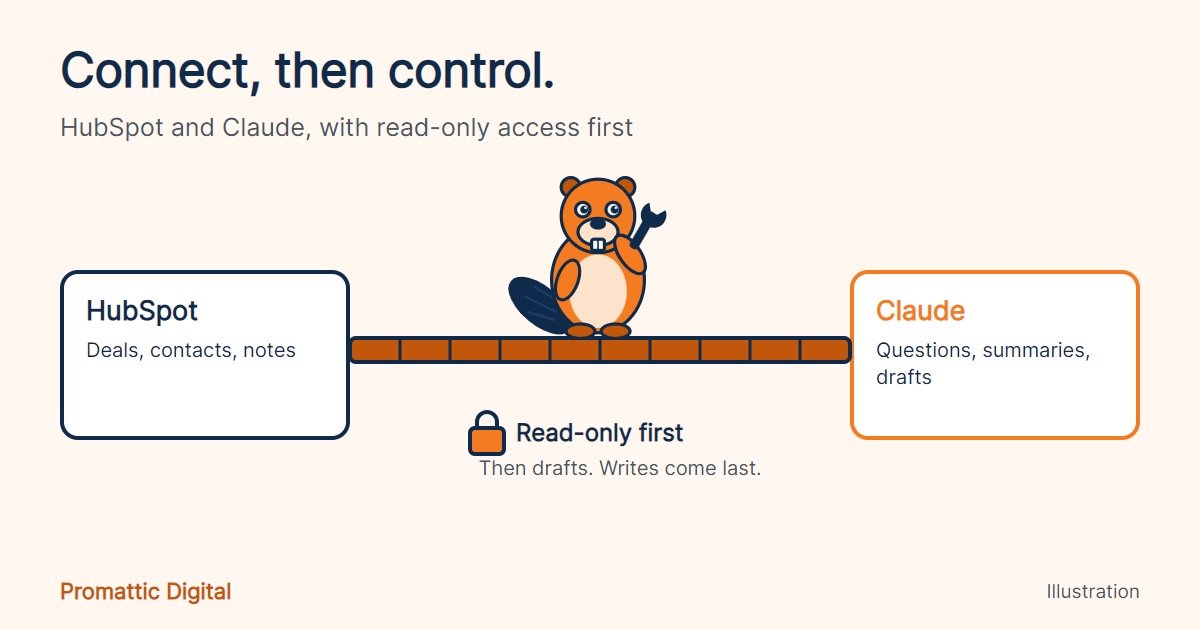
- Start read-only. Give Claude permission to read records first. Add write access later, for specific objects, once you trust how your team uses it.
- Require approval for changes. If you allow updates, set them to need confirmation. AI-made edits can skip checks that your forms and workflows normally apply.
- Check what it can see. The connection works with the permissions of the person who signs in. Review who has access to sensitive data before you switch it on for everyone.
- Remember data protection. Your CRM holds personal data. Make sure using an AI tool fits your privacy policy and any agreements you have with customers.
- Verify important numbers. For board reports and forecasts, cross-check AI summaries against your HubSpot dashboards.
Claude or HubSpot’s own AI (Breeze)?
HubSpot has its own AI, called Breeze, built into the platform. It’s convenient for tasks inside HubSpot, such as summarising records, drafting emails and helping with content.
Claude is useful when you want an assistant that works across tools: combining CRM data with documents, spreadsheets or other systems, or handling longer, more open-ended questions. Many teams use both. The right mix depends on your plan, your data and what your team actually asks for.
A sensible way to roll it out
- Clean up first. AI answers are only as good as your data. Fix duplicate contacts, missing owners and unclear deal stages.
- Pilot with two or three people on read-only access for a few weeks.
- Write down the questions that work and share them as a team playbook.
- Agree the rules for what AI may change, and who approves it.
- Expand gradually, adding write access only where it saves real time.
The bottom line
Claude and HubSpot together can save your team hours every week, as long as your CRM is in good shape and the permissions are set with care. Start small, read-only, and build from there.
Want help setting up AI in HubSpot the right way? Book a free 30-minute audit and we’ll review your portal and show you where AI would save your team the most time.